Guide
How to auto-approve Facebook group members (2026 guide)
If you admin a Facebook group with more than 50 pending requests a day, manual approval stops working. This guide walks through screening questions, approval rules, spam blocking, and how to stay ban-safe.
Updated June 2026 · 12 min read
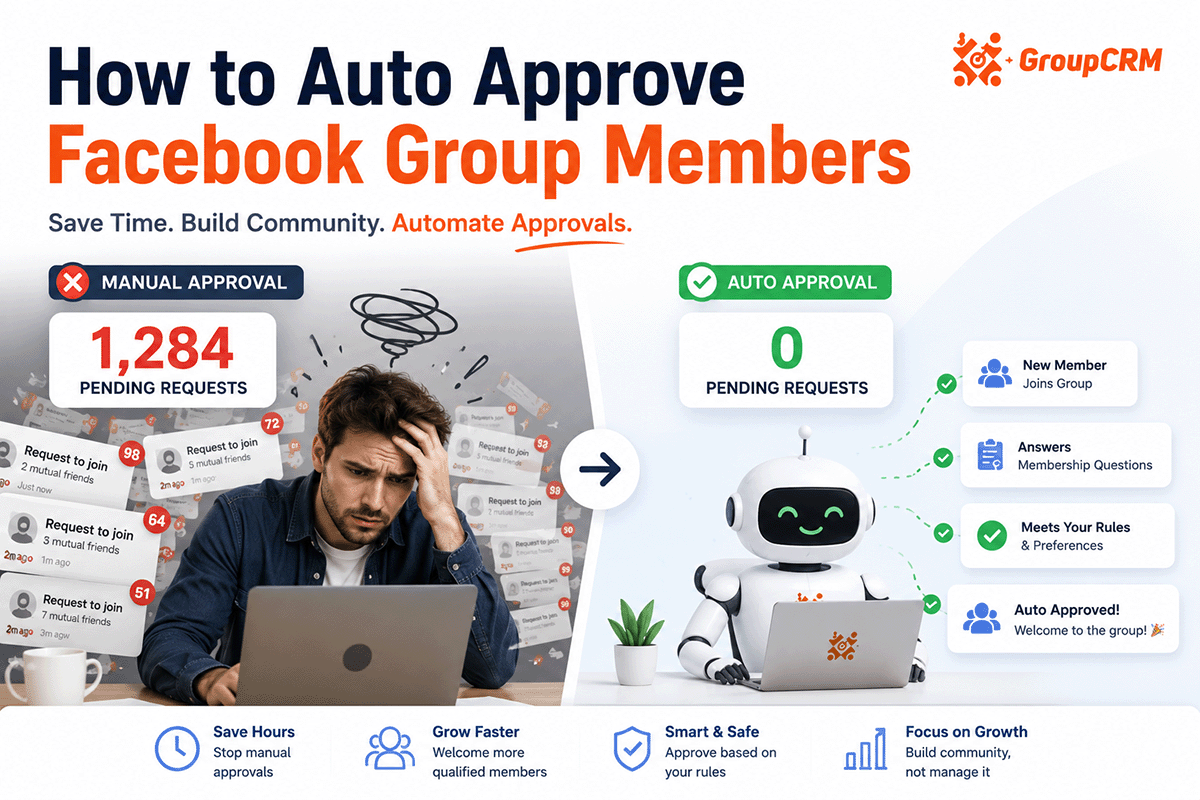
Why manual approval breaks down
A coach with an 8,000-member group told us she spent 90 minutes every morning on join requests. That is 30 hours a month clicking approve, copying emails into a spreadsheet, and sending the same welcome message by hand. At 50 requests per day, you are looking at roughly 15 to 20 seconds per person if you actually read their answers. At 200 requests, you are past two hours before you have even opened your inbox.
Spam makes it worse. In open groups, 20 to 40 percent of requests can be junk: fake accounts, duplicate joiners, bots answering screening questions with copy-paste text. Manual review means real leads sit in the queue while you wade through garbage.
Auto-approve does not mean "let everyone in." It means you write rules once, and qualified members get approved while spam gets declined. You keep control. You just stop doing the same clicks every day.
Four things to set up first
Before you turn on automation, get these in place:
- Screening questions that ask for email. Facebook lets you require answers before someone can request to join. If you do not ask for email in a question, no tool can magic it out of thin air.
- Written group rules. Know who belongs and who does not. Your automation rules should match what you would do manually.
- A second admin or moderator. If automation pauses or Facebook glitches, someone else should be able to step in.
- Notifications turned on. Facebook group admin alerts for new requests help you spot when something looks off.
Step 1: Screening questions that filter at the Facebook level
Go to your group → Admin tools → Membership questions. You get three questions. Use all three.
Example set for a coaching group:
- 1. What is your email address? (Required for our member directory.)
- 2. What is your biggest challenge right now with [topic]?
- 3. How did you hear about this group?
Question 1 gives you the lead. Question 2 helps you score answer quality. Question 3 catches low-effort spam ("nice group" or random links).
Mark all questions as required. In group settings, enable "Approve all participants" so every request hits your queue (and your tool) before they enter.
Step 2: Pick a tool (Chrome extension vs API)
Facebook does not offer a public API for group join request management. Every tool in this space works through a browser extension that reads your pending requests while you are logged into Facebook.
GroupCRM uses that model. Install the Chrome extension, sign in, and it discovers every group you admin. Pending requests sync to a dashboard with full profile data, screening answers, account age, and mutual friends. No password sharing.
Avoid anything that asks for your Facebook password or a long-lived access token pasted into a random website. If it feels like phishing, it probably is.
Step 3: Build per-group approval rules
Rules are IF/THEN logic. If a request matches your criteria, approve. If not, decline or hold. Different groups can have different rules.
Rule: Email required
Decline or hold anyone who leaves the email field blank or writes "NA" or "see profile." This alone cuts junk by a large margin.
Rule: Minimum account age
New Facebook accounts (under 30 or 90 days) are common spam vectors. Set a floor of 60 to 180 days depending on how strict your group is.
Rule: Mutual friends
Require at least 1 or 2 mutual friends with existing members. Works well for local or niche communities.
Rule: Keyword block
Block answers containing "crypto," "DM me," "WhatsApp," or whatever spam your group gets. Add new keywords when you see patterns.
Rule: Custom answer match
Require minimum character count on open-ended questions. "k" or "." fails. A real sentence passes.
See our auto-approve landing page for a live rule builder demo.
Step 4: Add an auto-decline path for spam
Holding bad requests in the queue clutters your dashboard. Active decline keeps the queue clean and sends a signal to repeat offenders.
Pair decline rules with an optional decline message: "Your request was declined because the email field was not completed. You can re-apply with a valid email." Some people re-apply correctly. Spammers usually do not.
Log declined requests to Google Sheets if you want to track spam patterns over time.
Step 5: Stay ban-safe
Facebook watches for bot-like behavior: hundreds of approvals in minutes, identical message text sent to 50 people back-to-back, actions at perfectly regular intervals.
What to do:
- - Space approvals with random delays (30 seconds to several minutes between actions)
- - Cap daily approve and message counts
- - Pause automation during Facebook outages or when you get a warning
- - Vary welcome message templates slightly if you send high volume
GroupCRM builds these guardrails in by default. You still control your rules and can pause anytime.
Step 6: Welcome new members on approval
Approval is half the job. The other half is onboarding. Send a Messenger DM when someone is approved, not 48 hours later when you finally have time.
Keep the first message short:
Hey [first name], welcome to [group name]! Pin post #1 has our getting-started guide. Reply here if you have questions.
Use variables for first name and group name so it does not read like a blast. More on templates in our welcome message guide.
Do not send a sales pitch as the first message. Onboarding first. Link to your pinned post or a short Loom. Save the offer for day 3 or 7 via email if you captured their address.
Testing rules before you go live
Never flip automation on for a 10,000-member group on day one. Run a dry run on your pending queue first.
- Install your tool and sync groups without enabling auto-approve.
- Review the last 20 pending requests manually. Note which would pass your draft rules.
- Turn on rules in "preview" or test mode if your tool supports it. GroupCRM shows approve/decline outcomes before actions fire.
- Enable auto-approve for one small group or during low-traffic hours.
- Check the next morning: false declines, missed approvals, Messenger sends.
- Scale to remaining groups after 48 hours clean.
If someone legitimate gets declined, adjust the rule, not the whole system. One false negative is cheaper than 200 spam members polluting your feed.
Running auto-approve across multiple groups
Agencies and power admins often run 3 to 12 groups. Each group needs its own rule set. A free community group might accept anyone with an email. A paid mastermind group might require 180-day account age and 2 mutual friends.
Use one dashboard to see pending counts across all groups. Prioritize the group with a launch this week. Pause automation on groups in quiet periods so you are not burning daily action caps on empty queues.
Sync each group to its own Google Sheet tab or workbook so client reporting stays separate. Webhooks can route by group ID to different CRM pipelines.
When Facebook changes the layout
Facebook updates group admin UI without warning. Extensions break occasionally. Good vendors ship fixes within days. Keep a manual fallback: check pending requests once daily until the extension updates.
Subscribe to your tool's changelog or status page. GroupCRM publishes updates at docs.groupcrm.co/changelog. If automation pauses, you can still approve from Facebook natively while you wait.
Common mistakes
- - Approve-all with no rules. Fast until spam ruins the group.
- - No email question. You capture names, not leads.
- - Cranking speed to max. Facebook notices.
- - Same rules for every group. A local moms group and a 20k coaching group need different filters.
- - Never reviewing declined requests. You miss false positives and new spam patterns.
Auto-approve is a time saver, not a set-and-forget replacement for caring about who is in your group. Check your dashboard twice a week. Adjust rules when spam patterns shift. Your future self will thank you.
Optional: message before approval
Some admins message applicants who have not finished screening questions. The request stays pending. You nudge them to complete the form. Once they answer, your rules evaluate and approve.
This works for high-ticket groups where every member is worth a personal touch. Keep the nudge short: "Hi [name], we need your email to approve your request to [group]. Can you resubmit with question 1 filled in?"
Do not spam nudge every pending user daily. One message per applicant is enough. Combine with lead capture so you still store partial data from incomplete requests.
What you get back in time
Assume 150 requests per week, 20 seconds each to review and approve manually. That is 50 minutes weekly, or 43 hours per year. At $50/hour opportunity cost, that is $2,150 annually spent clicking buttons.
Software at $19 to $49 per month pays for itself if it saves you even one hour. Most admins report 10 to 15 hours saved per group per month once rules and welcome messages run automatically.
The bigger win is speed to lead. Approving and messaging within minutes of a request keeps intent high. That shows up in conversion rates even if you never calculate the hourly math.
Start with a free 7-day trial. Build rules on real pending requests from your group before you commit. Most admins know within two days whether automation fits their workflow.
Quick summary
Set screening questions with email first. Install a Chrome extension that reads join requests without your password. Build per-group rules: email required, account age, mutuals, keyword blocks. Auto-decline spam instead of letting it sit. Pace actions so Facebook does not flag your account. Welcome members on approval with a short personalized DM.
Test on a small group before scaling. Review declined requests weekly. Adjust rules when spam evolves. Done right, auto-approve saves 10+ hours per month per group and gets leads into your funnel faster than manual clicking ever could.
Common questions
Can Facebook ban you for auto-approving group members?
Facebook can flag accounts that approve or message too fast. Use tools with human-like delays, daily caps, and spaced actions. Never approve hundreds of members in a few minutes. GroupCRM paces every action for this reason.
Do I need to share my Facebook password to auto-approve?
No. Chrome extensions like GroupCRM use your existing browser session, the same way opening facebook.com in a tab would. No passwords, tokens, or API keys are stored.
What screening questions should I ask before auto-approving?
At minimum, ask for email in one question. Add one qualifying question (why they want to join) and one filter question (location or experience level). Require all three to be answered before your rules can approve.
Should I auto-approve everyone or use rules?
Use rules. Blind approve-all works for tiny private groups. For groups over a few hundred members, you will get spam. Require email, set account age minimums, and block known spam keywords.
How long does setup take?
Most admins are live in one afternoon. Install the extension, connect groups, write 3 to 5 rules per group, test on pending requests, then turn automation on.